Opus 5.5 Video Prompt Guide: Quick Prompt vs Full Brief, Tested
 Written byOpus 5.5 Video teamUpdated 26 Oktober 2026
When you write a video prompt for Claude Opus 5.5, have you ever wondered how much the wording actually changes the video? Opus 5.5 doesn’t film anything. It writes the video as code: the layout, the type and the timing of every frame. So a prompt works like a brief to a motion designer.
To find out how much the brief matters, we gave Opus 5.5 the same three video ideas twice: once as a one-line prompt and once as a full brief. All six videos are below with their exact prompts. If you just want to make one, Opus 5.5 Video runs the model for you in the browser.
In this article
- TL;DR
- The Five Parts of a Good Opus 5.5 Video Prompt
- Quick Prompt vs Full Brief: How We Tested
- Test 1: A Bakery Ad
- Test 2: An App Launch
- Test 3: A Growth Chart
- Practical Tips for Better Opus 5.5 Video Prompts
- Two More Styles From One-Line Prompts
- What to Leave Out
- Changing a Video After It’s Made
- Put Your Brief to Work on Opus 5.5 Video
- FAQs About Opus 5.5 Video Prompts
TL;DR
- A one-line prompt still gets you a clean, finished video, but everything specific in it is a guess.
- Some guesses turn into claims you never made, like “Baked here every day”.
- In our tests, every detail we put in the full brief ended up on screen: the audience, the offer, the numbers, the colours and the last line.
- Pick the length and format in the settings, and leave out 3D, voice-over and filmed footage.
The Five Parts of a Good Opus 5.5 Video Prompt
You don’t need all five every time, but each one you add removes a guess. Here is one prompt for a bakery, built part by part:
- Who it’s for
- What to say: Who will watch it and where
- Example: For people walking past our bakery
- One message
- What to say: The single thing they should remember
- Example: Fresh sourdough every morning
- Exact numbers or offer
- What to say: Prices, dates, figures, written the way you want them shown
- Example: Croissants €1.80
- Colours or photos
- What to say: Your brand colours, or attach up to 6 photos including your logo
- Example: Warm cream and brown
- The ending
- What to say: The line or call to action that stays on screen at the end
- Example: End: Order ahead online
Put together, that is one short paragraph:
Length and format are chosen in the settings: 10 to 30 seconds, in 16:9, 9:16 or 1:1. A new video costs the same whatever its length (see pricing).
Video Example: The Five Parts in 30 Seconds
Video Format: 30 seconds, 16:9, Motion style.
An explainer we made for this guide: animation written as code by Claude Opus 5.5 and rendered with the same player our generator uses. It was not made from a single prompt.
Make Your Opus 5.5 Video Now
Type an idea, paste your ad text or a link. Opus 5.5 writes the animation in a few minutes, and you download the MP4.
Start Creating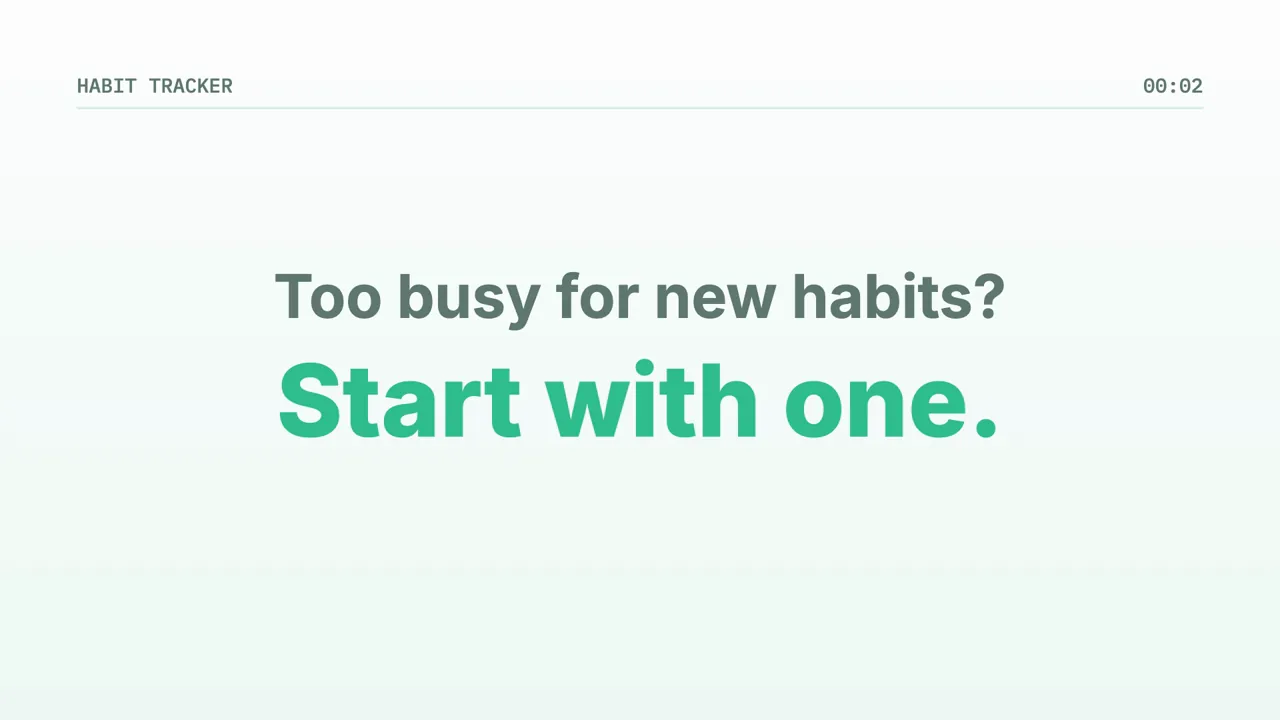
Quick Prompt vs Full Brief: How We Tested
Each video was written once by Claude Opus 5.5 outside our website, following the exact instructions our generator sends it, as a 15-second 16:9 video in the Motion style. Each one passed our automatic checks on the first try and was rendered with the same player. We didn’t edit or re-roll any of them.
It is three pairs and one attempt each, so treat it as a demonstration, not a benchmark: the same prompt can come out differently next time.
Test 1: A Bakery Ad
The quick prompt names only the kind of business. The full brief adds who walks past, the one message, the price, the colours and the closing line.
Video Example: Bakery Ad
Make an ad for my bakery.
For people walking past our bakery: fresh sourdough every morning, croissants €1.80. Warm cream and brown. End on "Order ahead online".
What Changed:
- The quick version is generic. Every line could belong to any bakery (“Fresh bread. Warm pastries.”, “Visit us today”). It also wrote “Baked here every day”, which nobody told it.
- The full brief speaks to the people we named. It opens with “Walking past?”, the line a passer-by reads first.
- The offer stays exact. “Croissants €1.80” appears as written and again on the end card, which closes on our line “Order ahead online”, in cream and brown.
Test 2: An App Launch
Here the quick prompt gives the product type and the occasion. The full brief adds the audience, what the app does, the price and the colours.
Video Example: App Launch
Make a launch video for my habit tracker app.
For busy people who want to build one habit at a time: our habit tracker app sends one reminder a day and shows your streak. Free for 14 days, then $4.99 a month. Mint green on white. End on "Start your streak today".
What Changed:
- The quick version has no reason to choose it. A tidy sample habit list, but no price and nothing that sets this app apart. The blue accent and the “Download now” ending are its own choices.
- The full brief tells a story. “Too busy for new habits? Start with one.”, then the one daily reminder, then a streak.
- The price is shown at its final value. “Free for 14 days, then $4.99 a month” stays on screen, and the video ends on “Start your streak today” in mint green on white.
Test 3: A Growth Chart
Charts show the gap most clearly, because a chart is only as good as its numbers.
Video Example: Growth Chart
Show that our sign-ups grew this year.
For our team meeting: monthly sign-ups grew from 1,200 in January to 4,800 in June (Feb 1,650, Mar 2,300, Apr 3,100, May 3,900). One message: we quadrupled in six months. Navy and coral. End on "Thank you, team".
What Changed:
- No figures in, no figures out. Opus is told never to invent statistics, so the quick version’s bars have no values and no months.
- It still made a claim. It wrote “Every month, more of you joined”, which we never said. Check lines like that before you post.
- The full brief is a real chart. Six labelled months count up to our numbers, then a “4×” punchline with “1,200 in January → 4,800 in June”, in navy and coral, ending on “Thank you, team”.
No Claude plan needed · MP4 download
Practical Tips for Better Opus 5.5 Video Prompts
The quick versions aren’t broken: they are well made and readable. What they lack is anything only you know. These habits close that gap:
Before You Generate:
- Lead with the audience. In our tests, one phrase like “for people walking past our bakery” shaped the opening line.
- Give exact numbers and prices. They appear as written, and prices are shown at their final value, never counted up.
- Quote the last line. Put the closing words in quotes so they are used word for word.
- Name your colours, or attach photos. Without them, Opus picks a neutral ground and one accent colour of its own.
- Read the preview for lines you didn’t write. Where the brief is silent, Opus fills the gap with general lines, and some of them are claims.
Two More Styles From One-Line Prompts
A one-line prompt works when the video is about a look rather than facts. These two came from the prompts shown, unedited.
Video Example: Four-Step Explainer
Video Format: 15 seconds, 9:16, Sketch style.
Written by Claude Opus 5.5 from the prompt below, with the same rules our generator uses, and not edited.
Video Example: Kinetic Type Showreel
Video Format: 15 seconds, 16:9, Motion style.
Written by Claude Opus 5.5 from the prompt below, with the same rules our generator uses, and not edited.
What to Leave Out
Opus 5.5 draws with type, shapes, charts, icons and your photos. These can’t be made, so asking for them only takes space in your prompt:
- 3D scenes and playable games
- Realistic people or filmed footage
- Voice-over (music and sound effects are included; you can pick the music’s mood)
- A specific song, or anything longer than 30 seconds
Changing a Video After It’s Made
You don’t start over to fix something. Describe the change in one sentence, for example “make the price bigger” or “end on our logo”, and only that part is asked to change. Each change costs 80 credits; a new video costs 320 (see plans). If a change can’t be made, the credits come back automatically.
Put Your Brief to Work on Opus 5.5 Video
Start from the full brief closest to your idea, swap in your own audience, offer, colours and last line, and paste it into Opus 5.5 Video. You don’t need a Claude plan or any setup, and you download the finished MP4. For cartoons and short 2D stories, start from the prompts on the Opus 5.5 animation generator page.
Usually ready in 1 to 5 minutes · MP4 download
FAQs About Opus 5.5 Video Prompts
Does a longer prompt always make a better video?
Not longer: more specific. In our tests, every detail in the full briefs (the audience, the offer, the numbers, the colours, the last line) showed up in the video. A one-line prompt still gives a finished video, but it has to guess the rest.
Do I need a Claude subscription to make an Opus 5.5 video?
No. Opus 5.5 Video runs Claude Opus 5.5 for you. You don’t need a Claude plan, Claude Code or any setup.
Can I paste ad text I wrote with ChatGPT?
Yes. Paste it as your prompt. If the text mentions a length or a format, the site points it out so you can switch the setting before you generate.
How long does it take?
Usually 1 to 5 minutes. A long, detailed 30-second video can take 10 minutes or more.
Can I use my own logo and photos?
Yes. Attach up to 6 photos, including your logo. The logo is shown whole and never cropped, and the video is built around your photos.
Will it keep my prices exactly as I wrote them?
It is told to show prices, discounts and offers at the value you give, and never to invent prices, statistics or customer names. Check the preview before you download.